
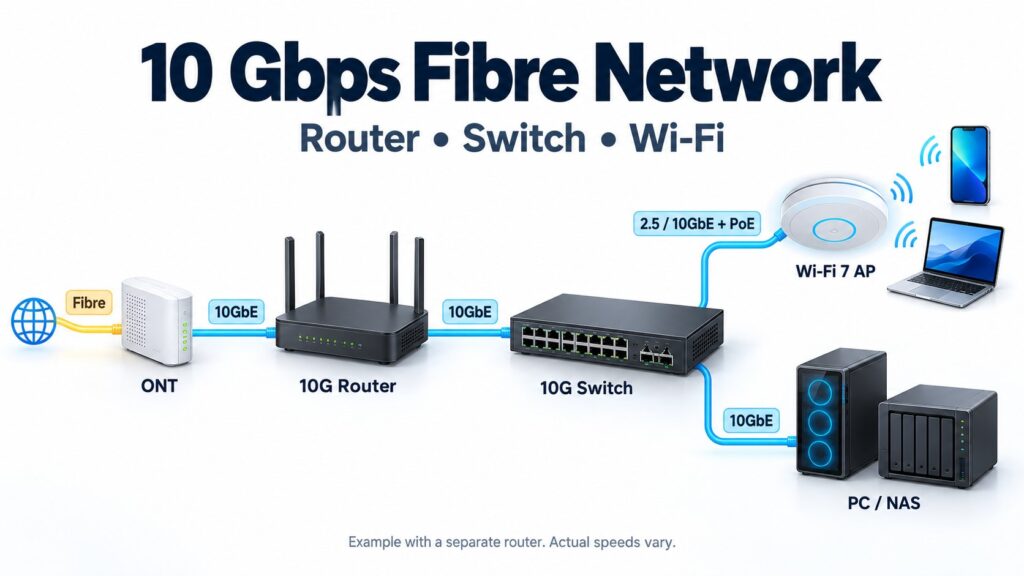
A good 10Gbps network setup starts with the entire connection path, not just the broadband plan. To distribute 10G fibre internet around a home or office, the fibre terminal, router, switch, cabling and end devices must work together. One 1Gbps link can limit everything connected behind it.
The practical design is a 10Gbps backbone with connection speeds matched to each device. Use 10GbE links for the router, main switch and demanding wired computers. Connect Wi-Fi access points through suitable multi-gigabit ports, preferably with wired backhaul. Ordinary printers and many other low-bandwidth devices do not need 10GbE.
This guide explains how to plan 10Gbps broadband in Singapore, avoid common bottlenecks and choose a sensible layout for a home or small office.
How does a 10Gbps network setup fit together?
There are two common layouts. The correct one depends on whether your internet provider supplies an optical network terminal (ONT) or an optical network router (ONR).
- Separate-router layout: fibre service → ONT with a 10GbE handoff → router with 10G WAN and 10G LAN → 10G switch → wired devices and access points.
- Provider-router layout: fibre service → ONR with routing enabled and a 10GbE LAN port → switch → wired devices and access points operating in AP mode.
The featured diagram illustrates the separate-router layout. In the ONR layout, the ONR takes the router’s place. Confirm the actual operating mode with your provider; the box’s label alone does not explain its configuration.
10Gbps means 10 gigabits per second, not 10 gigabytes. The arithmetic equivalent is 1.25 gigabytes per second before overhead. Application speeds are lower and also depend on the remote server, connection conditions and your device.
1. Check the fibre handoff and ONT or ONR mode
Before buying equipment, ask your provider which port delivers the high-speed service, whether your plan is symmetrical, and whether the supplied equipment is performing routing. Some packages offer a high aggregate speed across multiple connections rather than guaranteeing that one application can use the headline rate.
For example, Singtel’s 10Gbps Enhanced FAQ describes an ONR with one active 10Gbps LAN port and additional gigabit ports. It also states that bridge mode is not offered for that plan. Those details should not be assumed to apply to every Singapore broadband package.
If the ONR remains your router, configure a compatible downstream Wi-Fi router or mesh system in access point mode. Running a second NAT router behind it creates double NAT, which can complicate inbound connections and some applications. AP mode also changes which device manages DHCP and other network features; TP-Link’s AP-mode guide explains this distinction.
If you need your own router to control the connection, confirm supported bridge or passthrough arrangements before ordering. A normal Ethernet SFP+ socket does not automatically replace the provider’s provisioned optical terminal.
2. Choose a 10G router with enough real throughput
A 10G router needs a suitable WAN connection from the provider and a fast LAN connection towards your switch. A router with only one 10G port may use that port for WAN, leaving its LAN side restricted to a lower speed.
Port speed and routing performance are separate specifications. Check the throughput available with the features you actually intend to use: firewall inspection, intrusion prevention, traffic shaping, VPN and the provider’s connection method. Manufacturer specifications can list very different figures for these tasks; Ubiquiti’s gateway specifications, for example, distinguish IDS/IPS throughput from VPN throughput.
For an office, also consider the number of active users, simultaneous sessions and traffic between network segments. Ask the installer to test with your intended settings enabled. A high speed-test result obtained with important features disabled is not a useful acceptance result for the finished installation.
3. Select the right 10G switch and multi-gigabit ports
The switch distributes traffic to wired devices and access points. A 10G switch can provide fast connections, but a switch advertised as having “10G uplinks” may still have only 1Gbps ports for end devices. Read the port-by-port specification.
| Connection | Practical starting point | What to check |
|---|---|---|
| Router to main switch | 10GbE | Both ports, cable or modules, and negotiated link speed |
| Main switch to another switch | 10GbE where the downstream demand justifies it | All downstream users share this uplink |
| High-performance desktop or NAS | 10GbE if large transfers justify it | Network adapter, storage and processing performance |
| Modern Wi-Fi access point | 2.5, 5 or 10GbE to match its port and expected load | PoE standard, power budget and switch speed support |
| Printer or other light-use device | Its supported speed, often 1GbE or lower | No need to upgrade a port beyond the device’s requirement |
The internet connection is shared. Four devices with 10GbE ports do not each receive a dedicated 10Gbps internet service through one 10Gbps WAN link. Local transfers between devices on the same switch can use separate switching capacity, subject to the switch’s design and the devices involved.
Count the ports before buying: reserve connections for the router, other switches, access points, computers and storage. For an office, a managed switch is useful when you need VLANs, monitoring and controlled uplinks. Check its switching capacity as well as its port labels.
4. Check Cat6A cabling, SFP+ modules and device adapters
For new copper cabling intended for 10GbE, Cat6A is a sensible specification. Cisco’s cabling guidance describes 10GBASE-T over Cat6A at up to 100 metres, with Cat6 limited to shorter distances of up to 55 metres and affected by installation conditions. Have existing links tested rather than relying only on the printing on the cable.
The complete cable channel includes patch leads, wall outlets and patch panels. A poor termination can cause errors or a lower negotiated speed even when the equipment supports 10G.
For short connections inside a rack, compatible SFP+ direct-attach cables may be convenient. Optical modules and suitable fibre can serve other distances. Match the module, cable and port specifications at both ends. Copper SFP+ modules can have shorter limits than built-in RJ45 ports: Cisco’s SFP-10G-T-X datasheet, for example, specifies up to 30 metres at 10Gbps.
Check the computer too. A 1Gbps laptop dock remains a 1Gbps bottleneck. For 10GbE adapters, confirm that the computer interface, drivers and operating system can support the required throughput. File transfers may still be limited by the source or destination storage.
5. Connect and position Wi-Fi access points properly
A Wi-Fi 7 access point can be useful for compatible modern devices, but the Wi-Fi generation alone does not determine actual speed. Check its Ethernet uplink, radio capabilities, power requirements and client compatibility.
Headline Wi-Fi figures may combine theoretical radio rates across several bands. They are not a promise of that speed to one phone. The Omada EAP783 specifications illustrate why radio rates, Ethernet ports and power requirements should be considered separately. Check the locally supplied hardware version rather than assuming every regional model is identical.
A 2.5GbE AP uplink limits traffic passing through that wired link to its available capacity, shared among its clients. It can still be a sensible choice. Specify a 10GbE uplink where the AP and expected combined traffic can benefit; it does not turn every wireless client into a 10Gbps device.
Use wired backhaul wherever practical. This means cabling each access point or compatible mesh node back to the LAN instead of relying on another wireless hop. TP-Link’s Ethernet-backhaul guidance describes how this avoids consuming wireless capacity for the connection between nodes.
- Place access points near the areas people actually use, rather than hiding them inside a metal network cabinet.
- Plan coverage around walls, floors and interference. More access points are not automatically better.
- Check the required Power over Ethernet standard and the switch’s total PoE budget. An injector must support the required data speed as well as sufficient power.
- Keep existing Wi-Fi 6 equipment where it meets the requirement. Not every device needs replacement to benefit from a faster shared backbone.
6. Manage office users, guest Wi-Fi and CCTV traffic
A reliable 10Gbps network setup also needs clear traffic rules. For an office, consider separate staff, guest and CCTV or IoT networks using VLANs supported by the router, switches and access points.
VLAN labels alone do not provide isolation. Configure firewall rules for the permitted connections, such as authorised viewing of the CCTV recorder, and test that guests cannot reach private devices. Traffic routed between VLANs may be limited by the router or Layer 3 switch handling it.
Use guest bandwidth limits and schedule large backups if they interfere with work. QoS can help prioritise traffic during congestion, but it cannot create extra internet bandwidth. Confirm the router’s performance with traffic management enabled.
CCTV recording stored on a local NVR primarily uses the local network; remote viewing and cloud uploads use the internet connection. Size switch uplinks and recorder connections from the combined camera bitrates and viewing workload. If you are also comparing camera features, see our Hikvision vs Dahua AI CCTV guide.
7. Test the 10Gbps network setup in stages
Testing each part separately makes troubleshooting much easier than repeatedly running a Wi-Fi speed test.
- Check negotiated speeds. Confirm that the WAN, router-to-switch and relevant device links show the intended 10G or multi-gigabit rate.
- Test the wired LAN. Use capable computers and a network throughput tool to assess the local path. A file copy also tests storage, so it is not a pure network measurement.
- Test internet access over Ethernet. Use a capable wired device and suitable test server. Compare with your provider’s published testing method and expected performance.
- Test Wi-Fi near each AP, then in working areas. Record the client model, band, location and AP connection. This helps separate coverage problems from internet bottlenecks.
- Test several users together. Include a video call, a large transfer and normal application use. Confirm the system remains responsive with the intended firewall and traffic policies active.
Keep the results with the port map and equipment list. If performance later falls, compare the same devices, locations and test methods before replacing hardware.
Example layouts for a home and small office
Home: a fast backbone with sensible upgrades
Start with the provider’s 10G handoff and a capable router or ONR. Use a switch with enough 10G ports for the router, a demanding desktop and a NAS, plus multi-gigabit connections for access points. Retain lower-speed ports for light-use devices. Choose the number of APs after checking the floor plan and coverage.
Office: capacity, segmentation and support
Use a suitably sized gateway, a managed core switch and PoE access switches with adequate uplinks. Connect demanding workstations and storage at 10GbE where justified. Provide wired APs for occupied areas, separate guest access and document the firewall rules. Budget for cabling tests, configuration, power protection and support alongside the hardware.
Frequently asked questions
Do I need a 10G switch for 10Gbps broadband?
You need switching and uplinks above 1Gbps wherever you want traffic to exceed 1Gbps. You do not necessarily need 10GbE on every port. A mixed-speed switch can provide 10G backbone links and lower-speed device connections.
Will a 10Gbps plan give my phone 10Gbps Wi-Fi?
No. The phone, access point, radio conditions and AP uplink all affect performance. A 10Gbps plan can provide useful shared capacity even when individual wireless devices operate much more slowly.
Can I connect a switch straight to the fibre box?
Yes when the box is an ONR performing the required routing and firewall functions. With a bridged ONT, the normal layout places your router before the LAN switch. Confirm the provider’s configuration first.
Can two 1Gbps cables replace a 10Gbps connection?
No. Supported link aggregation can increase combined capacity across multiple traffic flows, but two 1Gbps links do not become a 10Gbps link and normally do not double the speed of one flow.
Plan your home or office network with SecureSG
Before upgrading, prepare your broadband plan details, ONT or ONR model, floor plan, existing cable types and a list of devices needing faster connections. This turns a shopping list into a network plan that can be checked and tested.
Contact SecureSG to discuss your network, Wi-Fi and CCTV requirements and confirm the appropriate project scope. You can also browse our installation and security articles for related planning advice.
Technical references checked on 30 October 2026. Example layouts are planning guides, not guaranteed speed results. Confirm your provider’s requirements and the exact specifications of the equipment supplied. The featured diagram is AI-generated and shows a separate-router example.